Annual Financial Report (AFR) Portal
The Arizona Auditor General’s AFR portal, created in conjunction with the Arizona Department of Education (ADE), is a web-based method that school districts (districts) and charter schools (charters) will use to populate and create the annual financial report (AFR), including the school-level AFR, required by Arizona Revised Statutes (A.R.S.) §15-904. This portal will produce an AFR and school-level AFR in a Microsoft Excel export file to present to the governing board and upload to ADE, once approved by the governing board. Instructions are provided throughout the portal to guide districts and charters through the required completion steps.
To begin, users must create an account and request access to their district’s or charter’s reports. The portal and Accounts and Access instructions are linked separately below. Districts and charters will use the same portal.
Accounts and Access Instructions
New Users
Creating an Account
If this is your first time using the Auditor General’s AFR portal, please use these steps to set up your account.
Go to https://afr.azauditor.gov, where you'll find the Sign In screen. Select the link that says “No account? Create one” to go to the account creation screen.
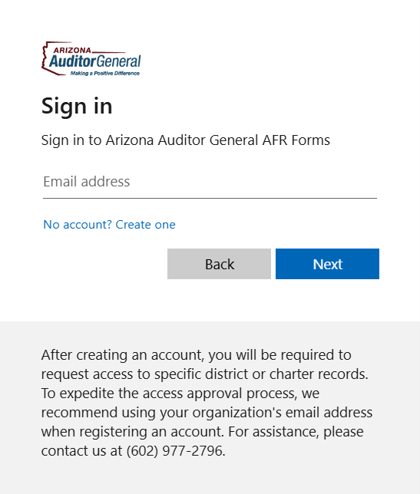
- Enter your email address and select the Next button. As described on the screen, we recommend using your organization email address to expedite our process for approving access to specific district and charter records.
- You will receive a verification code in the email address you entered. Enter the code on the screen to complete the verification process.
- The email with your verification code will come from the sender account-security-noreply@accountprotection.microsoft.com and have the title "Your Arizona Auditor General External Users account verification code." If you don’t see it in your inbox after a few minutes, please check your spam folder.
- Once you’ve logged into the site, you’ll see the Reports dashboard. If this is your first time using the site, you likely won’t have any permissions yet. To request access to a school, follow the instructions under the “Requesting Access” section.
Requesting Access
- Select the “Request Access” button on the top right of the page.
Select your district/charter from the “Schools” dropdown menu, then select the “Request Access” button.
Note: Some district/charters have similar or identical names. The “Schools” dropdown menu includes the charter’s/district’s Entity ID (shown before the name) and CTDS (after the name) numbers assigned by the Arizona Department of Education for each district and charter. Verify you are choosing the correct entity using either or both numbers. You may also search for your entity by typing the number into the field.
- You can find all your pending requests under the “Pending” option in the “Request Access” dialog under “Pending Requests.”
- You may request multiple districts/charters by selecting “Request Access” to add more districts/charters.
- To remove a request, select on the ‘trashcan’ icon next to the pending district/charter.
- Auditor General staff will approve district/charter school requests. During business hours (8:00 a.m. to 5:00 p.m.) the approval will generally occur within an hour of submission. Please be aware that if a request is sent after hours, on a weekend, or a State holiday, the approval will not arrive until the next business day.
- Once your access has been approved, account setup is complete. Use the Schools dropdown at the top left to choose from any districts or charters you have access to.
Note: For account and data security, accounts will automatically require re-approval 120 days after the last approval. If you do not see a district/charter school you had previously requested, please submit a request, via Step 4 above.
Returning Users
The AFR portal uses a passwordless login system. To sign back in to your existing account, simply enter the same email you used when you first registered. Another verification code will be sent to your email account. Once you enter the verification code, you will gain access to the portal.
Administrators
Requesting Administrator Access
Administrator access allows you to approve, modify, and revoke access to the district(s)/charter(s) that have been approved for you, without requiring approval from the Auditor General staff. To request Administrator access, please send an email to asd@azauditor.gov with “AFR administrator access request” in the subject line. In the body of the email, please include the name and Entity ID/CTDS number(s) of the district(s)/charter(s) for which you will be requesting administrator access and the email address you use to sign into the AFR Website for each. You may request multiple districts/charters within the same email.
Approving Others' Portal Access
If you have been designated as an administrator for your district(s) or charter(s), you will be able to approve access requests for others. To do so, use the below steps.
- Have the person you would like to grant access create an account and request access, as described in the “New Users” section above. You should supply the person with the district’s/charter’s Entity ID and/or CTDS number to ensure they request the correct entity.
- In the top navigation bar select the “Admin” button and then select “Roles” from the dropdown menu.
On the “Manage Roles” page, select the “Role” dropdown then select “Pending.” This will display all access requests for your districts/charters that are currently awaiting your decision. You can see the verified email address and which entity they have requested.
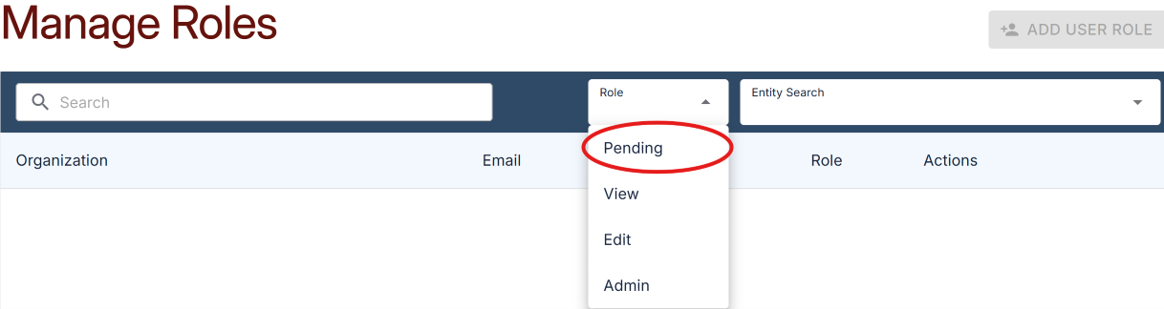
Use the buttons on the right to Approve or Deny each access request. Approving the request will give them the approved user “Edit” permission for 120 days, after which access to the requested organization will expire, as described in the New Users section above.

Modifying or Revoking Access
On the “Manage Roles” page, you may modify the user’s access permissions based on their roles.
- Select “Modify” in the “Actions” column for the line containing the organization’s name and the user’s email address.
- From the “Role” dropdown menu, select the appropriate permission you wish to assign then select the green “Save” button.
- To revoke access, select the “Delete” button on the line with the user’s email address. Revoking access cannot be undone. The user would need to submit a new request for access, but their account would remain intact.
These permissions grant the following abilities:
- View: Grants read-only access to existing forms, including Export ability. This type of access cannot create or modify forms.
- Edit: Grants View access and abilities to create and modify new forms.
- Admin: Grants View and Edit access and the ability to modify permissions on the Manage Roles page.